
Explore Hidden Steam Features for a Better Gaming Experience
Explore Steam's hidden features that can significantly enhance your gaming experience, including dynamic collections, controller configurations, and more.

Discovering Unseen Features in Steam
Steam, initially launched as a straightforward PC game store, has evolved dramatically over the years. Gamers now use it not just for purchasing games but as an essential hub for their gaming experiences. Surprisingly, many power-user features reside within the platform, waiting to be discovered. Here are some of the lesser-known tricks that can enhance your Steam experience significantly.
Big Picture Mode on Multiple Screens
Gaming setups often include multiple displays, with many users preferring to keep their gaming visually appealing while seated comfortably. Steam's Big Picture mode is perfect for this purpose, but it can be frustrating when it defaults to the main PC monitor. Configuring Steam to open Big Picture mode separately on a larger screen, like a TV, while using the standard interface on the main monitor is an underappreciated feature.
To set this up:
- Launch Steam and enter Big Picture mode.
- Go to Settings > Display.
- Select your TV as the Preferred Display for Big Picture mode.
- Leave the regular monitor as the standard Steam display.
This way, while gaming on your couch with a controller, the experience is immersive, without disrupting regular desktop activities when at the desk.
Managing Friend Notifications
Notifications about friends' gaming activities can quickly become burdensome, especially when they repeatedly crash their games. Fortunately, Steam allows users to disable these specific notifications, ensuring a less cluttered experience. To turn off these alerts:
- Access Steam > Settings > Notifications.
- Locate the When any friend starts a game option and disable it.
This adjustment prevents constant notifications for every failed launch and keeps your friends list intact and manageable.
Dynamic Collections for Game Organization
As game libraries grow, locating installed titles among uninstalled ones can be tedious. Steam's Dynamic Collections feature provides a solution by automating game organization based on defined filters such as installed status, genre, and playtime. To set up Dynamic Collections:
- Create a new collection in your Steam library.
- Choose to make it dynamic.
- Establish your desired filters.
This feature automatically adds matching titles to the collection, simplifying library management without requiring constant oversight.
Enhanced Controller Configurations
Steam Input supports various controllers, offering a wealth of customization options. Users can access configurations shared by the community, which can significantly improve gameplay. To explore these configurations:
- Connect your controller and navigate to a game's Properties screen.
- Select Controller and click on Controller Configurator.
- View community layouts that fit your game and hardware.
This feature is particularly useful for older titles with less than optimal controller support, allowing players to enjoy enhanced gameplay experiences without remapping buttons from scratch.
Utilizing Persistent Notes in the Steam Overlay
For many users, the Steam overlay is simply a handy tool for connecting with friends during gameplay. However, it has an often-overlooked notes editor! You can create and retain notes visible on the screen while playing games, ensuring you never lose track of objectives or clues. Here’s how to use this feature:
- Activate the Steam overlay while in a game.
- Create a note with any necessary information.
- Keep it visible to reference during gameplay.
This functionality transitions the Steam overlay into a productivity tool, helping you keep track of important game elements without interrupting your flow.
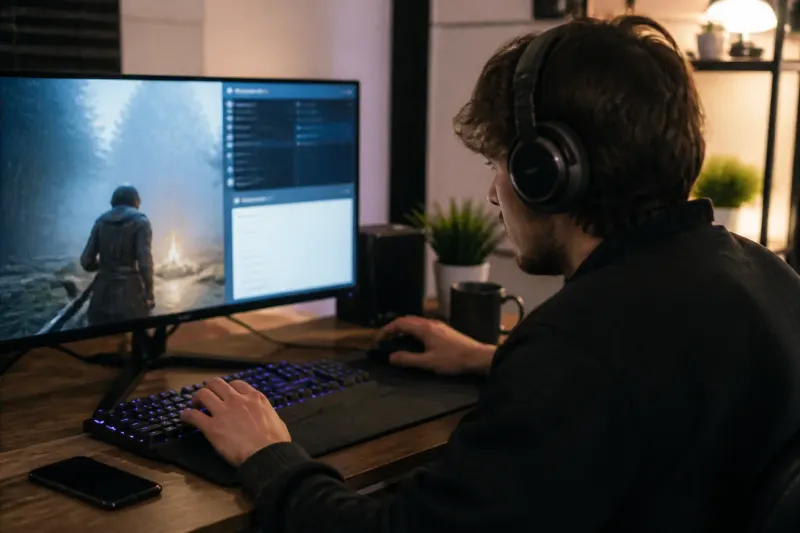
Downloading Games Over the Local Network
For households with multiple users, Steam's local network file transfer feature is invaluable. This tool allows users to share installed game files between computers on the same network, saving time and bandwidth. Here’s how to share games locally:
- Ensure the other Steam account has purchased the game.
- Go to Steam > Settings > Downloads > Game File Transfer.
- Set permissions for your own devices or others on your local network.
This method enables faster access to games and is especially handy in environments like college dorms.
Key Steam Features
| Feature | Description | Usage Tips |
|---|---|---|
| Big Picture Mode on Multiple Screens | Customize display settings for gaming on different screens. | Set your TV as the exclusive Big Picture display. |
| Dynamic Collections | Automatically organize your library by defined filters. | Create dynamic collections for installed games. |
| Controller Configurations | Access community-created input setups for optimized gameplay. | Use the Controller Configurator to explore layouts. |
| Persistent Notes in Overlay | Keep notes visible during gameplay for information retention. | Record clues and objectives without leaving the game. |
| Local Network Game Downloads | Share game files locally to save bandwidth and time. | Ensure both accounts own the game for sharing. |
Key Takeaways
- Steam offers unique features like Big Picture mode on multiple screens to enhance gaming setups.
- Users can efficiently organize games using Dynamic Collections to automate their library management.
- Customizable Controller Configurations provide access to community layouts for improved gameplay.
- Steam overlay now includes a notes feature for tracking game objectives.
- Local network downloads significantly reduce installation times for shared games.
Conclusion
Steam continues to surprise with features designed to enhance the user experience, many of which are hidden in plain sight. From customizable display settings to community-driven configurations, these tools can transform how gamers interact with the platform. Understanding and utilizing these features allows users to maximize their enjoyment and efficiency while using Steam. As gaming progresses, there's likely much more to uncover within this versatile platform.
Frequently Asked Questions